In a RESTful application, documenting end-point specification/schema is very important. There are various frameworks with different approaches available in Java space addressing this problem. It is obvious the best way is: to generate API specification from the source code so that it stays on up-to-date and accurate with your source code.
Spring RESTDocs offers a very good solution. It generates API doc from hand-written Asciidoctor templates merged with auto-generated snippets that are generated from unit/integration tests by promoting end-point testing to great levels. (Refer to my earlier post on this in a Grails application.)
Swagger UI is another solution which generates visual documentation from the source code. This also generates a testable Swagger UI page for all end-points along with Open API specification for each end-point. To get this right and complete, it requires adding additional details for documenting API specification/schema either in an yml file or by annotating source code, basically end-point action methods and objects involved in request/response handling.
Swagger UI is very useful and convenient to not only to know the specification details, but also to test REST APIs both from the same page. Spring boot comes with good support for this. I am not going to go into details of how to add Swagger UI support with Open API specification for a Spring Boot application. There are numerous posts on this.
This post is more on leveraging Swagger (OpenAPI 3 implementation) annotations in order to get better API specification/schema generated. Also, it goes into details on customizing the example end-point request/response JSON that shows sample request with meaningful data, rather than default data. Without adding any specific annotations for API specification, you will get a decent Swagger UI page. However, it is good to add little more details and make the specification much cleaner and clear.
Environment: Java 13, Spring Boot 2.2.4.RELEASE, PostgreSQL 12.1, Maven 3.6.2 on macOS Catalina 10.15.6
Environment: Java 13, Spring Boot 2.2.4.RELEASE, PostgreSQL 12.1, Maven 3.6.2 on macOS Catalina 10.15.6
Without any additional Swagger annotations
For instance, in a Spring Boot application, a POST operation end-point method to create a Person, and the request objects with no additional swagger annotations like shown below:
@RestController
@Slf4j
public class PersonController {
...
@PostMapping(value = "/person", produces = { MediaType.APPLICATION_JSON_VALUE, MediaTypes.HAL_JSON_VALUE })
public ResponseEntity create(@Valid @RequestBody Person person) {
...
return new ResponseEntity<>(newPerson, HttpStatus.OK);
}
}
@Data
public class Person {
private String firstName;
private String lastName;
private Gender gender
private int age;
private String email;
private Address address;
}
@Data
public class Address {
private String address1;
private String address2;
private String city;
private String state;
private String zip;
}
public enum Gender {
FEMALE, MALE
}
would result into Swagger UI as shown below:

and request schema details look like:

Note that the example request JSON is not good with respect to data for fields. When you click on Try it out button to test the API, you will have to edit the values of all fields with good data. To have a good example request with good sample data generated in Swagger UI page requires additional Swagger annotations.
With additional Swagger annotations
Enhancing code by adding annotations as shown below:
@RestController
@Slf4j
public class PersonController {
...
@Operation(summary = "Creates a new Person.", tags = { "Person" })
@ApiResponses(value = {
@ApiResponse(responseCode = "200", description = "Returns newly created Person."),
@ApiResponse(responseCode = "403", description = "Authorization key is missing or invalid."),
@ApiResponse(responseCode = "400", description = "Invalid request.")
})
@PostMapping(value = "/person", produces = { MediaType.APPLICATION_JSON_VALUE, MediaTypes.HAL_JSON_VALUE })
public ResponseEntity create(@Valid @RequestBody Person person) {
...
return new ResponseEntity<>(newPerson, HttpStatus.OK);
}
}
@Data
@Schema(
description = "A JSON request object to create Person"
)
public class Person {
@NotNull
@Size(min = 4, max = 128)
@Schema(example = "John")
private String firstName;
@NotNull
@Size(min = 4, max = 128)
@Schema(example = "Smith")
private String lastName;
@NotNull
@Schema(type = "enum", example = "MALE")
private Gender gender;
@NotNull
@Min(1)
@Max(100)
@Schema(type = "integer", example = "25")
private int age;
@NotEmpty
@Email
@Schema(example = "john.smith@smith.com")
private String email;
@NotNull
@Valid
private Address address;
}
@Data
@Schema(
example = """
{
"address1" : "1240 E Diehl Rd.",
"address2" : "#560",
"city" : "Naperville",
"state" : "IL",
"zip" : "60563"
}
"""
)
public class Address {
@NotNull
@Size(min = 4, max = 128)
@Schema(example = "1 N Main St.")
private String address1;
@Schema(example = "Apt. 100")
private String address2;
@NotNull
@Size(min = 4, max = 128)
@Schema(example = "Sharon")
private String city;
@NotEmpty
@Size(min = 2, max = 2)
@Schema(example = "MA")
private String state;
@NotEmpty
@Size(min = 5, max = 5)
@Schema(example = "02067")
private String zip;
}
public enum Gender {
FEMALE, MALE
}
would result into Swagger UI as shown below:

and request schema details look like:

Note that the specification and example is much cleaner with good data for all elements.
@NotNull, @NotEmpty, etc. - javax Validation Annotations
Also, javax field constraint annotations used for validation are very well considered. For instance all required fields (annotated with @NotNull or @NotEmpty) are marked as required elements with suffix * added to the element name.
Also, any invalid request results with more meaningful error response. In the example shown below, required field gender is missing and age has invalid value 0 sent in the request:

@Operation - swagger ui annotation
Annotate resource operations (controller methods) to add more details. The summary element of this annotation can be leveraged to add a meaningful description about the operation. The default will not add any description. The tags element can be leveraged to logically group operations so that they all show up under that tag on the page. If not specified, the default tag value is hyphenated class-name, in the above code example (without annotations), the default tag value is: person-controller.@Operation(summary = "Returns a list of MyDomain", tags = { "MyDomain" })
@ApiResponsse - swagger ui annotation
Further enhance Response descriptions by annotating controller method with @ApiResponses and describing every possible response code as shown below:
@ApiResponses(value = {
@ApiResponse(responseCode = "200", description = "Returns list of MyDomains."),
@ApiResponse(responseCode = "403", description = "Authorization key is missing or invalid."),
@ApiResponse(responseCode = "400", description = "Invalid request.")
})
Also, the class can be annotated with @ApiResponse annotation for describing all common response codes like 400, 401, 404, 500 etc. to keep annotations DRY. The controller methods can just describe 200 and any additional specific response codes. Also, can override class level annotated common response code descriptions. The following is an example annotation at the class level common for all controller methods:
@ApiResponses(value = {
@ApiResponse(
responseCode = "400", description = "Bad Request.",
content = { @Content(mediaType = "application/json", schema = @Schema(implementation = Errors.class)) }
),
@ApiResponse(
responseCode = "401", description = "Unauthorized. Authorization key is missing or invalid.",
content = { @Content(schema = @Schema(implementation = Void.class)) }
),
@ApiResponse(
responseCode = "404", description = "Not Found.",
content = { @Content(schema = @Schema(implementation = Errors.class)) }
),
@ApiResponse(
responseCode = "500", description = "Internal Server Error.",
content = { @Content(schema = @Schema(implementation = Errors.class)) }
)
})
public class PersonController {
...
@ApiResponses(value = {
@ApiResponse(responseCode = "200", description = "Returns newly created Person.")
})
@PostMapping(value = "/person", produces = { MediaType.APPLICATION_JSON_VALUE, MediaTypes.HAL_JSON_VALUE })
public ResponseEntity create(@Valid @RequestBody Person person) {
...
return new ResponseEntity<>(newPerson, HttpStatus.OK);
}
}
For error responses with codes like 400, 404, 500 etc., that return spring Errors object for any kind of failures like validation, exceptions etc. the implementation class can be specified as shown above. If there no-content for any response like 401, then Void.class is suitable which results with no details/schema for the response.
@Schema - swagger ui annotation
Annotate request and response objects with this annotation to describe it. Also, annotate object properties to add data type and example data in order to enhance sample request with more meaningful data.
The type element of this annotation can be used to specify type data type and example element to specify example value. Otherwise, the value defaults to Java default. For enums it picks the first one in the list of enumerations.
For String data types, if there is a specific set of values expected the list can be specified as an array of Strings for allowedValues element. This shows up in the schema for that element as an enumeration of values allowed.
TIPS
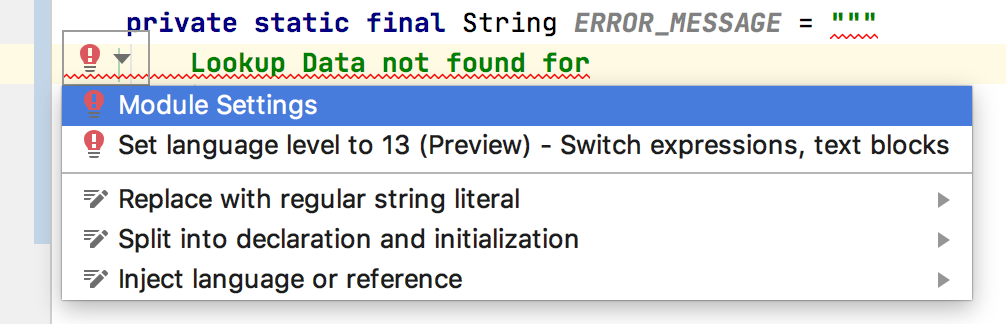
- @Schema annotation can be used at class level to specify a JSON representation of the object with meaningful data for all the object fields as an example as shown for the Address object in the code snippet above. When specified at this level it takes precedence over field level example data. I used Java 13 preview feature of multiline string in there.
- http://localhost:8080/swagger-ui.html shows Swagger UI page of your application. It basically redirects to http://localhost:8080/swagger-ui/index.html?configUrl=/v3/api-docs/swagger-config.
- http://localhost:8080/swagger-ui/index.html gives the Swagger UI page for pet-store based on https://petstore.swagger.io/v2/swagger.json. This is enabled by default. I have not found a way to disable this :(
- If there is a collection property like List in the object, for instances a List<Address> address; then you need to annotate it as shown below:
@ArraySchema(schema = @Schema(implementation = Address.class))
List<Address> addresses;
- Operations can be logically grouped by tags. Each tag can have a name and description properties. If annotations are used, then @Operation annotation can only take tag names, but no description. This is a limitation. The @Tag annotation supports both name, and description properties. So, if there are couple of operations that need to be grouped into one by one tag name, but also want to have a description, then one operation/method can use @Tag annotation with name and description, the other operation/method can use @Operation with tags property. This works and both operations get grouped under same tag name, and tag description is also shown along with tag name. So, @Tag and @Operation can mix and match across various operations/methods for the same tag group.
- By default all response messages are generated for response codes: 200, 400, 403, 404, 405, 406, 500, 503 in the responses section of the page, though the method is annotated with @ApiResponses annotation for only response codes 200, 400, and 403. In order to fix this you need to add the following property in application.yml or application.properties appropriately (springdoc properties).
springdoc:
override-with-generic-response: false




 Posts
Posts

